


Windows Event ID 4625 records a failed logon in the Security log of the computer where the attempt occurred. Start with the attempted account, the computer that wrote the event, and the Logon Type. Read Status and Sub Status together to understand why Windows rejected the attempt. A 4625 can explain a rejection without telling you who was at the keyboard or whether the same account later gained access.
Consider a file server that records two wrong password failures for an accounting user. A successful logon appears six seconds after the second failure, followed by access to the Finance share. A typo now looks plausible. So does unauthorized use of the account. Before you call the incident lead or hand the ticket to desktop support, check whether that share access came from the successful session.
Read the raw 4625 event first
In Event Viewer, open Windows Logs, then Security. Choose Filter Current Log, enter 4625 in the event ID field, and set the incident time window. Open an event, then use Details and XML View to see the original field names. If the alert came from a SIEM, compare at least one alert row with the underlying event. A field labeled user in a dashboard might represent the caller rather than the account whose logon failed.
| Field in the event | What to pull into your investigation |
|---|---|
Computer | The machine that wrote the record. For a network logon to a share, start with the server hosting the share. |
TargetDomainName and TargetUserName | The account presented for logon. Keep the domain or local computer name with the username so two accounts named admin stay distinct. |
SubjectUserName and SubjectLogonId | The caller context. These fields may identify a local service or another context reporting the failure. |
LogonType | The kind of logon requested. It tells you where to look next, such as a file server, a scheduled task, or Remote Desktop records. |
Status and SubStatus | The failure code and any extra detail. Capture both in hexadecimal so the next analyst can check your interpretation. |
IpAddress and WorkstationName | The recorded source details, when populated. Preserve missing or local values and check which network or service sits in front of the destination. |
TimeCreated, Channel, and EventRecordID | The time and record reference. Use UTC in your timeline and cite the computer and channel with the record ID. |
The source address may be blank for a local logon. An address such as 127.0.0.1 or ::1 is loopback. A remote address can represent a gateway or shared source, so use device inventory or a time matched network record before attributing it to a specific device. Windows can also represent an IPv4 address as an IPv6 mapped value, such as ::ffff:192.0.2.44. Preserve that raw value and normalize it when comparing records. See the Microsoft reference for Event ID 4625.
Decode Status, Sub Status, and Logon Type
0xC000006D is a general failure for an invalid username or authentication information. If Sub Status is 0xC000006A, you have a more specific reason: a wrong password. If Sub Status is 0x0, it supplies no useful extra failure detail. Retain the Status interpretation and record the uncertainty. A nonzero subcode is evidence to interpret in context, so keep the pair in your notes.
| Code | Meaning | First follow up |
|---|---|---|
0xC0000064 | The account name was unknown. | Check the domain and spelling. Compare other attempted names from the same recorded source. |
0xC000006A | The password was wrong. | Check the timing, source, and whether credentials changed recently. |
0xC0000072 | The account was disabled. | Check the account owner and disablement history. Identify any service or device still trying the account. |
0xC000015B | The account lacks the requested logon right on that machine. | Check the effective logon rights for the recorded type and review recent policy changes. |
0xC0000234 | The account was locked out. | Look back for earlier failures and find the corresponding lockout event where available. |
The failure code tells you what Windows rejected. The logon type tells you which activity produced the request. For example, a type 4 failure at the same minute each morning could be a scheduled task using old credentials after a rotation. Check the task history and the change ticket. The same password code on type 10 attempts from a source you cannot attribute calls for a review of Remote Desktop and any gateway records.
| Logon Type | Meaning | Where to look |
|---|---|---|
| 2 | Interactive | The local workstation and the account activity around the attempted sign in. |
| 3 | Network | The destination host and the service it offered. File share access is one common example. |
| 4 | Batch | The scheduled task or other batch job and its configured identity. |
| 5 | Service | The service configuration, service start time, and credential change history. |
| 7 | Unlock | The workstation and its existing interactive session. |
| 10 | RemoteInteractive | The Remote Desktop host and gateway or broker logs, when present. |
Type 3 describes a network logon. Both file share access and authentication to a Remote Desktop Gateway can use this type. Confirm the service with destination telemetry before calling an alert an RDP attempt. See Microsoft’s reference on administrative tools and logon types.
Correlate Event ID 4625 with 4624 and later activity
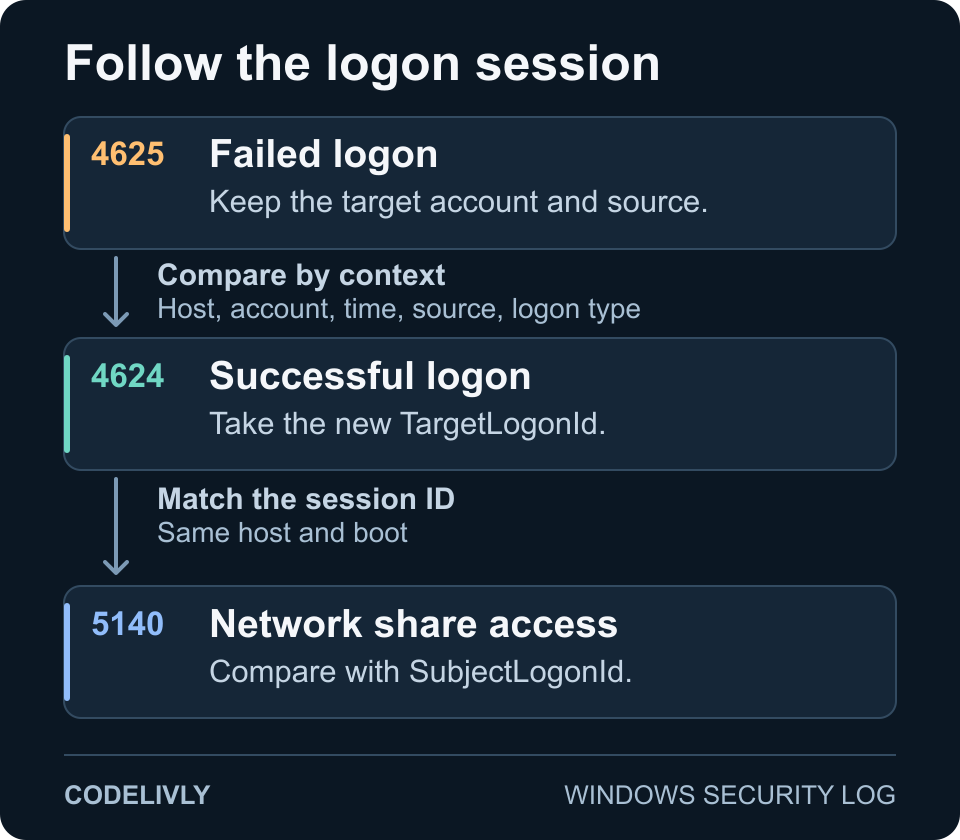
Event ID 4624 records creation of a successful logon session on the computer that was accessed. Search that computer around the event time for the same target domain and account. Compare the recorded source, logon type, and authentication package where present. Start with a small window you can explain, then widen it if there is clock skew, sparse coverage, or evidence that the alert window cut off earlier activity. Use the time the event was created when ordering records. Ingestion delay can make an earlier event arrive later in your SIEM.
The SubjectLogonId in 4625 describes the caller context. Compare the failure and success by account, computer, time, and source context. Once you have a candidate 4624, take TargetLogonId from its New Logon fields and look for that session on the same host and within the same boot. For example, a 5140 share event can carry the matching value in SubjectLogonId. Treat the same hexadecimal value on another machine as a separate session identifier. See the Microsoft references for 4624, 5140, and the scope of a Windows Logon ID.
For domain accounts, check the relevant domain controller when the destination log gives an incomplete picture. Event 4771 records a Kerberos preauthentication failure on a domain controller. Event 4776 records NTLM credential validation on the authority for those credentials, which is a domain controller for domain accounts and the local computer for local accounts. A 4776 can name the source workstation and omits the destination resource server. Event 4740 records an account lockout and can supply a caller computer name. Search the relevant authorities and note their coverage. See Microsoft’s references for 4771, 4776, and 4740.
Read failed and successful logons with PowerShell
Run this query in PowerShell on the relevant Windows computer with an account permitted to read its Security log. It reads the previous 30 minutes of 4624 and 4625 records and returns the original event references in UTC order. For an older case, set $end to the end of your incident window and adjust the start. The query reads existing records without changing audit policy or generating login attempts.
$end = Get-Date
$filter = @{
    LogName      = 'Security'
    ProviderName = 'Microsoft-Windows-Security-Auditing'
    Id           = 4624, 4625
    StartTime    = $end.AddMinutes(-30)
    EndTime      = $end
}

Get-WinEvent -FilterHashtable $filter |
    Sort-Object TimeCreated |
    ForEach-Object {
        $event = $_
        $xml = [xml]($event.ToXml())
        $data = @{}
        foreach ($node in $xml.Event.EventData.Data) {
            $data[$node.GetAttribute('Name')] = $node.InnerText
        }

        [pscustomobject]@{
            TimeUtc       = $event.TimeCreated.ToUniversalTime().ToString('o')
            Host          = $event.MachineName
            RecordId      = $event.RecordId
            EventId       = $event.Id
            TargetAccount = '{0}\{1}' -f $data.TargetDomainName, $data.TargetUserName
            LogonType     = $data.LogonType
            SourceAddress = $data.IpAddress
            AuthPackage   = $data.AuthenticationPackageName
            Status        = $data.Status
            SubStatus     = $data.SubStatus
            TargetLogonId = $data.TargetLogonId
        }
} | Format-ListBlank Status fields on a successful logon and a blank TargetLogonId on a failed logon are expected. If the query returns no matching events, check the time bounds and whether you are on the destination computer. Check that Audit Logon success or failure collection covers the event you expect and that the log still contains the window. An access denied error means you need a permitted account or a copy of the relevant events from someone who can read the log. See the PowerShell command reference and Microsoft’s Audit Logon policy reference.
Work the Finance share case
These synthetic records come from one investigation spanning three computers. All times are UTC on the same day, EXAMPLE\mrivera is one domain account, and 192.0.2.44 is an address reserved for examples. You can solve the case with the table.
| Time UTC | Computer and record | Evidence |
|---|---|---|
| 09:14:02 | FS01 / 74081 | 4625, type 3, EXAMPLE\mrivera, 192.0.2.44, Status 0xC000006D, Sub Status 0xC000006A. |
| 09:14:17 | FS01 / 74084 | 4625, same domain account, type, address, and codes as record 74081. |
| 09:14:20 | WS22 / 31106 | 4624, type 2, EXAMPLE\mrivera, source address omitted, TargetLogonId 0x7010. |
| 09:14:23 | FS01 / 74091 | 4624, type 3, EXAMPLE\mrivera, 192.0.2.44, TargetLogonId 0x4AF31. |
| 09:14:24 | FS01 / 74092 | 5140, audit success, EXAMPLE\mrivera, 192.0.2.44, SubjectLogonId 0x4AF31, share \\*\Finance. |
| 09:14:28 | FS02 / 50210 | 5140, audit success, EXAMPLE\svc_inventory, different source, SubjectLogonId 0x4AF31, share \\*\Inventory. |
- Which 4624 belongs in the file server timeline? Cite the record and the fields that make it a stronger candidate than the other success.
- Which share event can you link to that session? Explain why the other record with the same hexadecimal ID belongs outside this session.
- What additional evidence would let you distinguish a legitimate user retry from unauthorized use? What can you say about files in the share right now?
Case answer and handover
Record 74091 is the candidate success. It matches the destination, domain account, logon type, and recorded source of the two failures. Record 31106 is an interactive sign in on another machine. It belongs in a broader account timeline if you can connect WS22 to the recorded network address at the time, but time proximity alone leaves that link open.
On FS01, record 74092 matches the new session ID from 74091 and records access to the Finance share. The same number on FS02 is outside that session. Event 5140 describes share access, so it leaves individual documents and bytes transferred unresolved. If configured and retained, inspect event 5145 for the relative file or folder and requested access. Where the relevant audit policy and object auditing are in place, a 4663 record can add evidence of an operation involving the object. Assess copying or exfiltration with corroborating endpoint, file server, or network telemetry. See Microsoft’s references for 5145 and 4663.
Start by identifying the device associated with 192.0.2.44 during the window using DHCP, VPN, or other records appropriate to the network. Compare that device and share with the user’s normal access. If you contact the user, use a known channel and ask where they were working and what they opened before sharing the details of the alert. A matching device and account owner report support a legitimate retry. An unfamiliar device, an owner denial, or evidence of unexpected access raises urgency. Follow your team’s escalation procedure for sensitive resources while the source and impact remain unresolved.
From 09:14:02 to 09:14:24 UTC, FS01 Security records 74081, 74084, 74091, and 74092 show two wrong password failures for EXAMPLE\mrivera, followed by a successful network logon from 192.0.2.44 and Finance share access in session 0x4AF31. Device attribution, authorization, and file activity are unverified. Next, identify the device behind the address at 09:14 UTC and review available file access records for this session.
To practise documenting the decision, use Codelivly’s worked example on writing SOC investigation notes. It focuses on how to preserve uncertainty in a handover another analyst can act on.
When repeated 4625 events deserve escalation
Look at the distribution before you look at the count. Failures that restart every morning on one computer, for one account and one logon type, point you toward a repeating local cause. Failures concentrated on one target account from unfamiliar devices warrant a different investigation. One recorded source touching many accounts may fit password spraying, but shared gateways and malfunctioning services can also produce broad patterns. Compare the affected accounts, timing, source infrastructure, and normal traffic for the service.
Look for impact as a separate question. A lockout is a reason to check what caused it, while a matching success followed by access to a sensitive resource can justify faster review. An unknown source behind a shared gateway and a privileged account are reasons to gather better evidence promptly. Record the coverage of the sources you searched, including any missing endpoints or expired log windows. A case saying “no matching success in the available FS01 Security records for 09:00 to 09:30 UTC” gives the next analyst a specific result to verify.
Practice lab and books
Continue with Codelivly’s free Windows Event Log Analysis lab. It starts with an overnight Security log and asks you to piece together a sequence of events without an initial alert. For a broader study plan, the Codelivly SOC Analyst course covers log analysis, alert triage, and incident response.
- For the triage workflow. The paid SOC Analyst Level 1 Practical Playbook covers what to do when an alert lands, including evidence gathering and escalation.
- For more evidence to investigate. The paid SOC Analyst Lab Workbook contains 30 investigations with answer keys. Its first set includes repeated authentication failures and Windows logon analysis.
Frequently Asked Questions
Why is Event ID 4625 missing from the domain controller?
Does Event ID 4625 mean someone is trying to brute force a password?
Does a 4624 after a 4625 prove the same person signed in?
Related Articles
How to Become a SOC Analyst Without a Degree (2026 Guide)
You don't need a cybersecurity degree to land your first SOC Analyst job — you need log literacy, hands-on SIEM reps, an
ViewBest Beginner JavaScript Projects for Hacking (2026 Guide)
If you want to break into web security, building the best beginner JavaScript projects for hacking is the most effective
ViewDigital Forensics: A Complete Guide to Tools, Techniques, and Investigation
Learn digital forensics from the basics, including digital evidence, forensic tools, investigation techniques, reporting
ViewHow to Test an AI Application for Prompt Injection
Learn how to test an AI application for prompt injection vulnerabilities using practical testing techniques, security t
ViewPaywall Bypass
If you're trying to read an article behind a paywall, there are a few ways you can bypass it. One way is to use an Incog
ViewHow to Bypass Mega Download Limit
The major drawback of Mega cloud storage is that it comes with a restriction that allows the user to download or transfe
ViewCOMMENTS (0)
Sign in to post intel on this briefing.